How to Make a Birthday Card from Your Own Photo
Put a photo into a birthday template, add a short message, and preview your card. Learn where sign-in, watermarks, and downloads fit into the process.

On this page
Making a photo birthday card does not have to mean generating a new image. In GreetingCardGo's photo templates, you place your own photo behind the existing frame and edit the words separately. The optional AI Photo-to-Card tool is a different workflow.
You can choose a template, replace a photo, and edit before signing in. The standard free download is a PNG with the GreetingCardGo watermark. Saving to your account, creating a hosted share link, and buying a card unlock require sign-in. Check the current export options before choosing a paid option.
1. Choose a photo with a reason behind it
A shared walk, a family meal, or a day you still talk about gives the card a starting point. Use an image you own or have permission to use, and make sure the recipient would be comfortable seeing it shared.
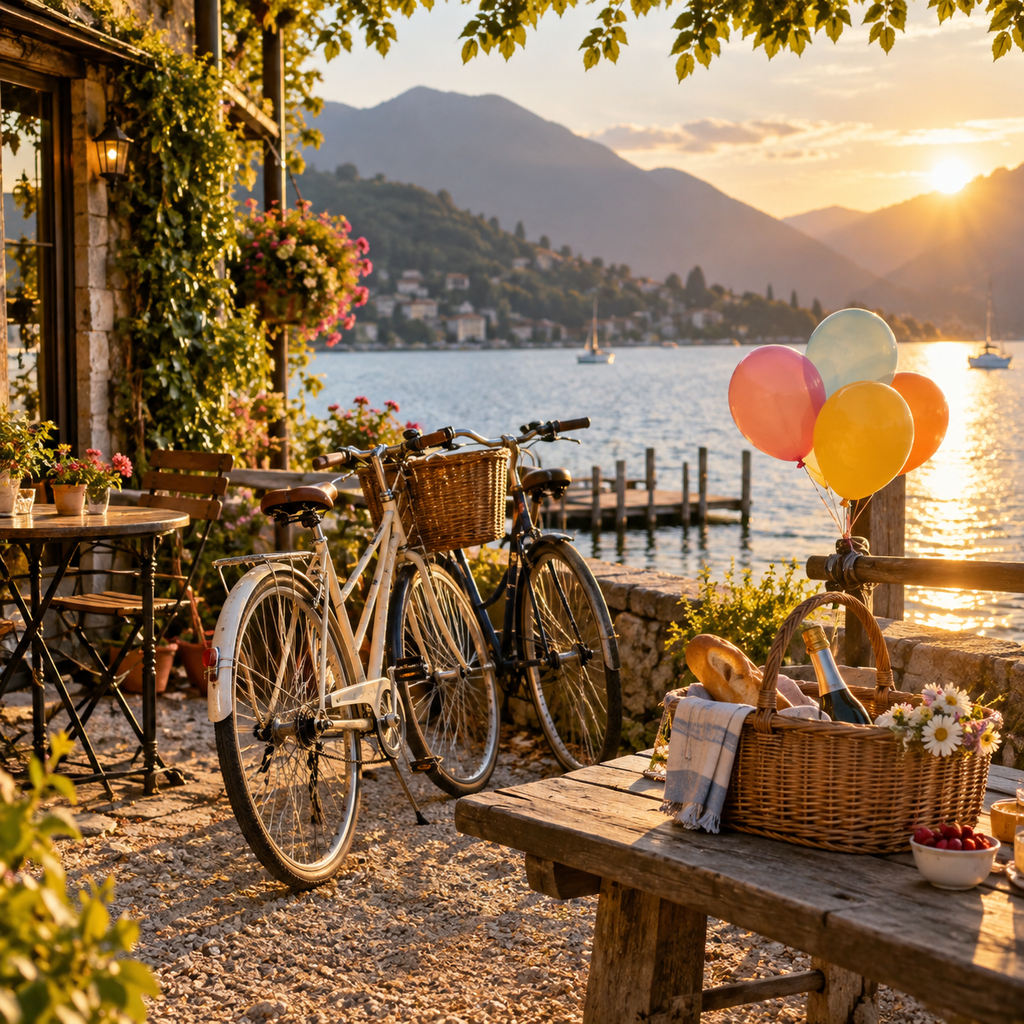
The example below uses an existing AI-generated, people-free demonstration image from our own template assets, not a customer's photo. It shows the placement workflow, not an AI transformation of an uploaded image.
2. Pick a photo birthday template
Open the birthday templates. Choose the friend photo card for a shared memory, or the family photo card for a moment together. Both are editable without a subscription; the paid options change export rights, not access to these templates.
For a friend, make the message about something you still laugh about. For family, use a sentence about the place or occasion in the photo. The photo and message should do different jobs rather than repeat the same idea.
3. Replace the photo and check its crop
Use Replace photo in the editor, then check the finished card rather than just the upload thumbnail. A rectangular landscape photo may need a different crop from a portrait. Keep faces and important details away from the edge of the frame.
Where the template exposes Fill and Fit, Fill covers the photo area and can crop the image; Fit prioritizes showing the whole image. Dragging the photo adjusts its position where supported. Preview after each change, especially on a phone.
This is template placement, not AI redrawing. Large uploads can be resized or compressed before saving; do not treat the card file as an archival copy of your original photo.
4. Keep the message short and personal
For a friend: “A day worth keeping. Here is to more days like this. Happy birthday!”
For family: “Another year, another reason to get everyone together. Happy birthday.”
Replace the signature with your name if you want one. Check the actual line breaks on the card: an extra sentence can push the message into a photo or make it harder to read at phone size.
5. Preview, then choose how to send it
The lightweight editor offers Download PNG. Free downloads keep a brand watermark; a one-card purchase unlocks watermark-free export for one saved card without a subscription.
The standard canvas is 600 × 400, and the PNG export implementation renders at 2×, giving an expected 1200 × 800 file. Check the downloaded file's dimensions and photo crop before sending. This is a file-size specification, not a promise that every uploaded photo retains its original detail.
These are actual free PNG downloads made with the demonstration image, not mockups of a paid result. The friend example below was exported from a local production build in the desktop editor; the family example was downloaded from the live site at a 390px mobile browser viewport. Both files measured 1200 × 800 and kept the brand watermark. The artwork and source image are AI-generated; the photo placement and export are real browser operations.
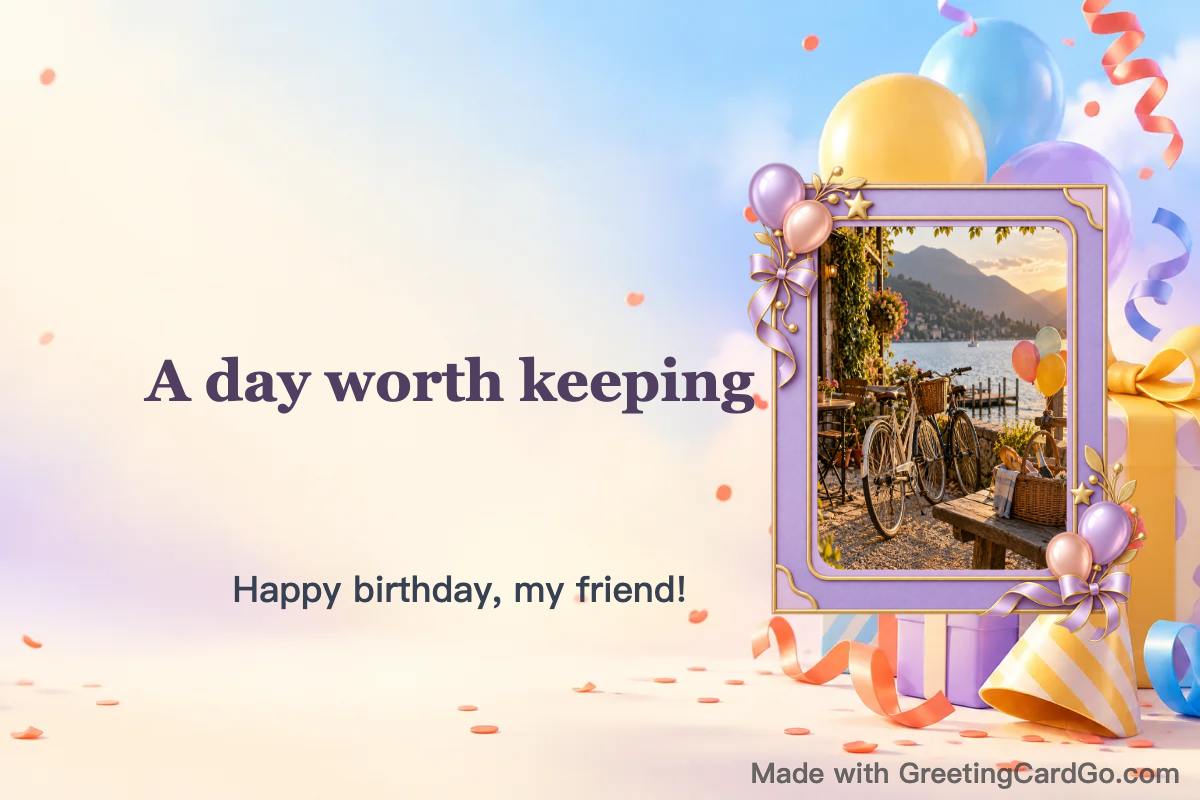
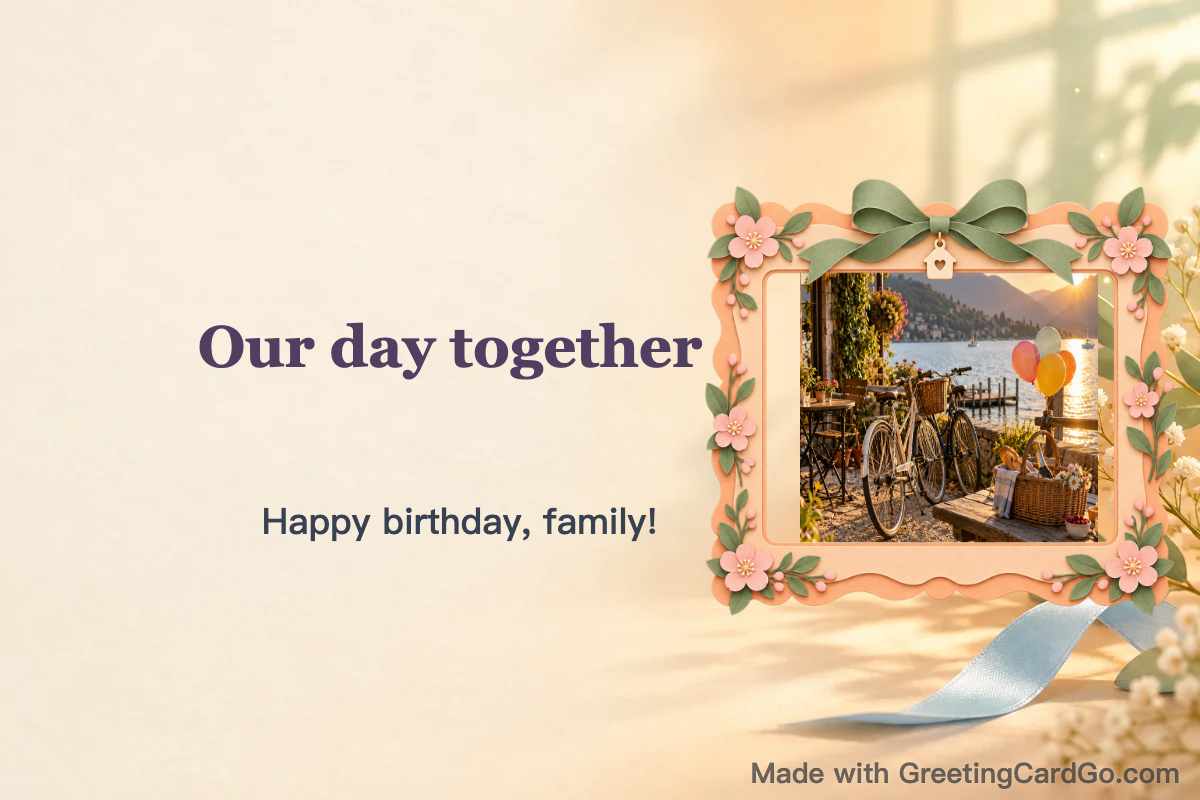
Send a downloaded image yourself through your preferred messaging app, or sign in to save the card and create a hosted link. These are separate paths; GreetingCardGo does not send a WhatsApp message on your behalf.
What we checked, and what still needs checking
This guide is written by the GreetingCardGo team. On October 9, 2026, we checked visitor photo replacement, text editing and free PNG downloads on the live site in a desktop browser and a mobile-sized browser viewport. We inspected both downloaded files, their dimensions, frame placement and watermarks. This is not a physical-phone test. The guest share action asked us to sign in; we did not complete account saving or login continuation. We have not purchased a card for this guide or checked a paid export.
Before saving or sharing personal images, read the privacy policy. A photo in a saved card becomes part of saved card content. Photos submitted to an AI feature may be processed by that feature's provider; ordinary template replacement should not be described as an AI request or as a guarantee that photos never leave your device.
When to use AI Photo-to-Card instead
Use template replacement when you want an existing layout and your photo placed into it. Consider AI Photo-to-Card when you want an AI-assisted card layout, and review its output and data handling separately. The two routes should not be used interchangeably in a tutorial or privacy promise.
Popular anytime
Directly turn this idea into a card
All Our Best Bad Ideas
Frame a photo of you two and the moments that still make you laugh
Previous article
Milestone Birthday Card Messages That Sound Like You
Write for a 30th, 40th, 50th, or any meaningful birthday by naming what this person has lived, made, and is looking forward to.
Next article
What to Write in a Graduation Card
Congratulate a graduate with a specific memory, honest praise, and a wish that leaves room for their own next step.